How to Remove a GIF Background Online Without Breaking Animation
Remove a GIF background online while preserving animation. Learn which sources work best, when to choose GIF or WebM, and how to avoid flicker and rough edges.
 ImageWise Team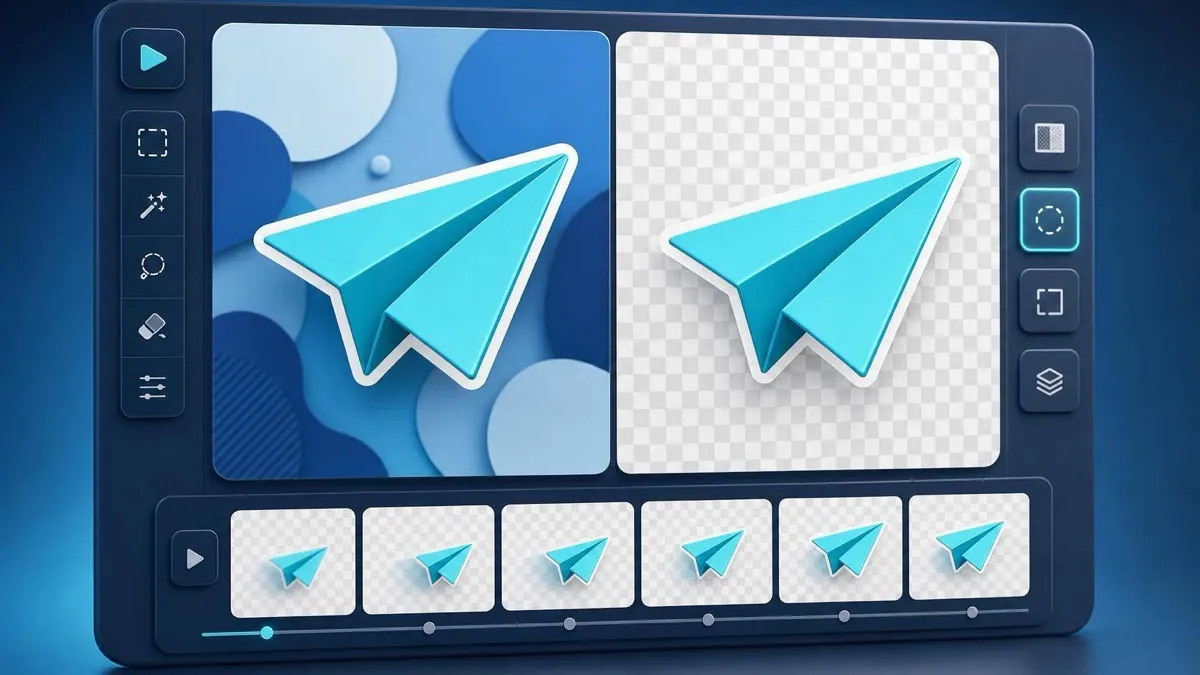
Removing a background from an animated GIF is not the same as editing one still image. A GIF contains multiple frames, and the foreground must remain consistent as the subject moves. The safest workflow is to process the animation as a sequence, inspect the moving edges, and export it in a transparency format that matches the final destination.
ImageWise's GIF Background Remover uses temporal AI to follow the foreground across the animation. It accepts animated GIF files, removes the background across frames, and returns either a transparent GIF or a transparent WebM.
Quick answer
- Open the GIF Background Remover.
- Upload an animated GIF of 10 MB or less.
- Choose Transparent GIF for broad compatibility or Transparent WebM for smoother semi-transparent edges and often smaller files.
- Run background removal.
- Preview the result over checkerboard, white, black, and blue backgrounds.
- Download only after checking the full loop for halos, missing details, or flicker.
Guests can try one GIF background removal per day with animations up to 5 seconds. Signed-in users can process GIFs up to 30 seconds and add up to 20 files to a batch queue. The workspace displays the estimated credit cost before processing.
Why animated background removal is harder
A still-image cutout has one foreground boundary. An animated GIF has a new boundary in every frame. Hair, fur, hands, motion blur, shadows, and reflective objects may change shape or position throughout the loop.
Processing frames independently can make an edge jump or flash. A temporal workflow considers motion across the sequence so the subject is more stable from one frame to the next. This does not make every source perfect, but it is more suitable for animation than manually applying an unrelated mask to each frame.
What ImageWise actually preserves
The current workflow validates the animation before and after processing. It keeps the original canvas dimensions and retains the frame sequence and timing needed for motion. Transparent GIF results are normalized to loop continuously so they replay reliably in browsers and chat interfaces.
The tool offers two output choices:
| Output | Best for | Important limitation |
|---|---|---|
| Transparent GIF | Websites, stickers, chat, and broad support | Pixels are fully transparent or opaque, so edges can jag |
| Transparent WebM | Modern web motion, overlays, and soft details | Not accepted by every app that accepts animated GIF files |
The tool does not provide a color-tolerance slider, feathering brush, manual frame masks, color replacement, or APNG export. Those options appeared in an earlier draft of this guide but do not match the current product and have been removed.
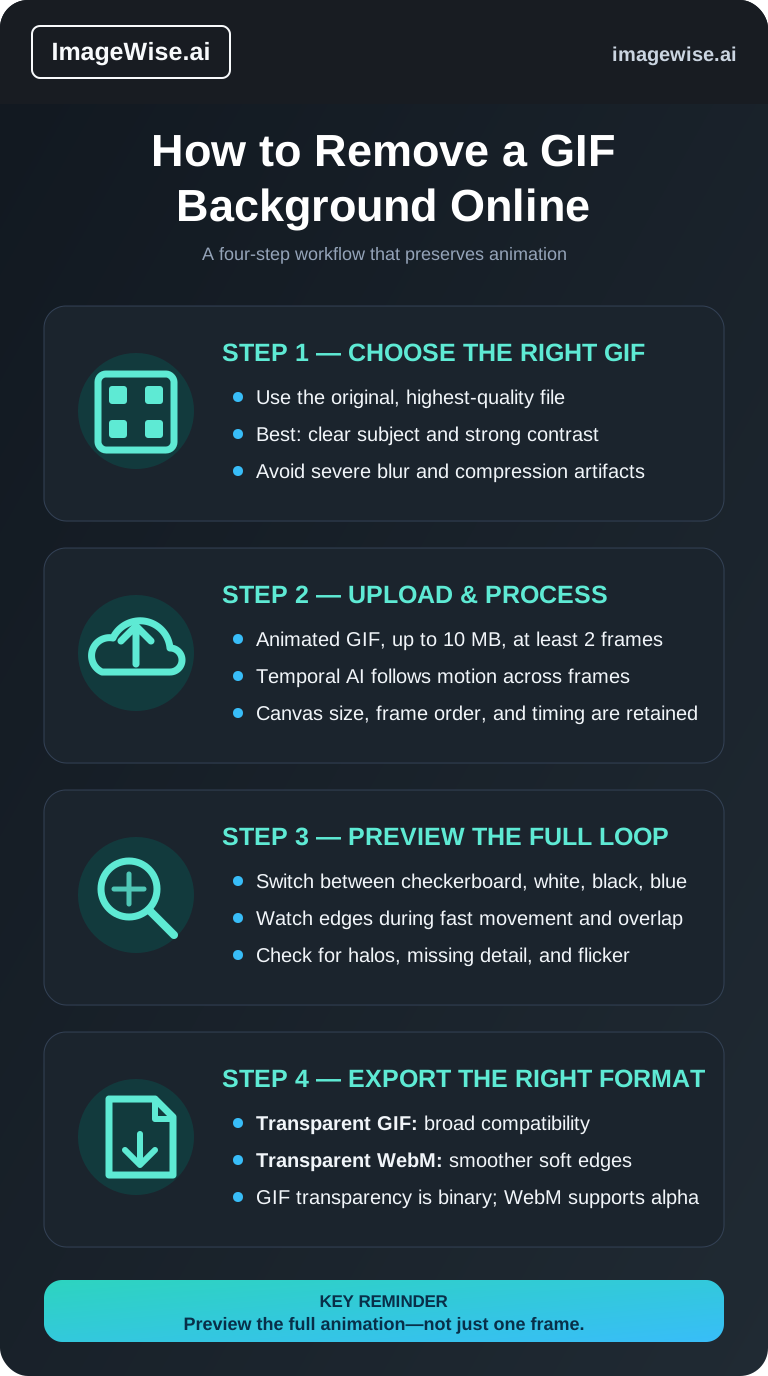
Step 1: Choose a suitable source GIF
The best results usually come from animations with:
- A clearly visible subject.
- Strong separation between foreground and background.
- Stable lighting and limited compression artifacts.
- Enough resolution to show fine edges.
- Short, purposeful motion rather than long video-like scenes.
White, light, or simple backgrounds are generally easier than crowded scenes. Complex backgrounds can still work, but fast motion, heavy blur, smoke, glass, and transparent fabric leave less information for clean separation.
Upload the original GIF rather than a screen recording or a copy downloaded repeatedly from social media. Repeated GIF compression reduces the color information available around edges.
Step 2: Check the file limits before processing
The current uploader accepts animated GIF files with at least two frames and a maximum file size of 10 MB. Guest trials support up to 5 seconds per GIF; signed-in processing supports up to 30 seconds per GIF.
The workspace reads the frame count, duration, dimensions, and file size before processing. If a file is too large or too long, shorten or re-export it in an animation editor before uploading. Do not convert a static image into a two-frame GIF simply to use this tool; use the regular Background Remover for still images.
Step 3: Pick GIF or WebM before starting
Choose Transparent GIF when the destination specifically requires GIF or when broad compatibility matters most. GIF transparency is binary: a pixel is either visible or transparent. Fine hair, soft shadows, glass, and motion blur may therefore look harder at the edge.
Choose Transparent WebM when the asset will appear on a modern website or in a video workflow that supports alpha transparency. WebM can preserve partial transparency, which usually produces smoother edges and can reduce file size.
This guide does not recommend APNG because ImageWise does not currently export APNG from this workflow.
Step 4: Inspect the entire animation
Do not judge an animated cutout from one attractive frame. Let it loop several times and switch the preview background:
- A checkerboard confirms that transparency exists.
- White reveals dark outlines and contaminated shadows.
- Black reveals pale halos and missing highlights.
- Blue makes many accidental transparent holes easier to spot.
Check the beginning and end of the loop, fast movement, hands crossing the body, hair, product corners, and contact shadows. A result can look clean in a still preview yet flicker during motion.
Common problems and practical fixes
A bright or dark halo follows the subject
The source background color may have blended into antialiased edge pixels. Try a higher-quality source with stronger foreground separation. For hair, shadows, or motion blur, WebM is usually the better output because it supports partial alpha.
Fine details disappear
Low resolution and aggressive GIF compression can merge the foreground with the background. Start from the earliest, highest-quality copy available and avoid resizing down before removal.
The edge flickers between frames
Flicker is often caused by rapid movement, occlusion, or severe compression. Shorten the clip to the useful action, remove redundant frames in an animation editor, or choose a source with a simpler background.
The result is too large
Transparent animations can be larger than expected. WebM is often more efficient for web delivery. If GIF is mandatory, shorten the duration, reduce the dimensions, or optimize it in a dedicated animation editor after checking that the optimized copy still plays correctly.
Good uses for transparent animation
- Animated stickers and reaction assets.
- Product spins and ecommerce callouts.
- Stream alerts and presentation overlays.
- Loading states and interface motion.
- Short social graphics placed over branded backgrounds.
Avoid using animated background removal to misrepresent a person, product, event, or ownership. Only process media you own or are authorized to edit. Review the AI Use Policy, Privacy Policy, and Terms of Service for rights-sensitive material.
Frequently asked questions
Does the result remain animated?
Yes. The workflow returns an animated GIF or WebM rather than a single flattened frame.
Will the output keep my dimensions and animation speed?
The result is validated against the original canvas dimensions and preserves the frame sequence and timing used for playback. GIF output is normalized for continuous looping.
Can ImageWise remove a white GIF background?
Yes. A clear subject on a white, light, or solid background is often a good source. The same AI workflow can also handle more complex scenes, although difficult edges need closer review.
Is it free?
Guests receive one free trial per AI feature each day. For GIF background removal, the guest trial supports a GIF up to 5 seconds. Signed-in use is credit-based, and the current cost is shown in the workspace before processing.
Should I choose GIF or WebM?
Choose GIF for compatibility. Choose WebM for smoother soft edges and efficient modern web delivery when the destination supports it.
Final checklist
Use an original, short, clearly separated animation; choose the output format before processing; preview the entire loop on several backgrounds; and verify that dimensions, movement, edges, and transparency meet the destination's requirements.
Remove a GIF background online and download the format that fits your workflow.