
Generate beyond the frame
Add believable new scenery around the source image instead of stretching, mirroring, or repeating its edge pixels.
AI Outpainting Tool
Change an image to a wider, taller, or square format while AI reconstructs coherent detail around the original composition.
Animated example
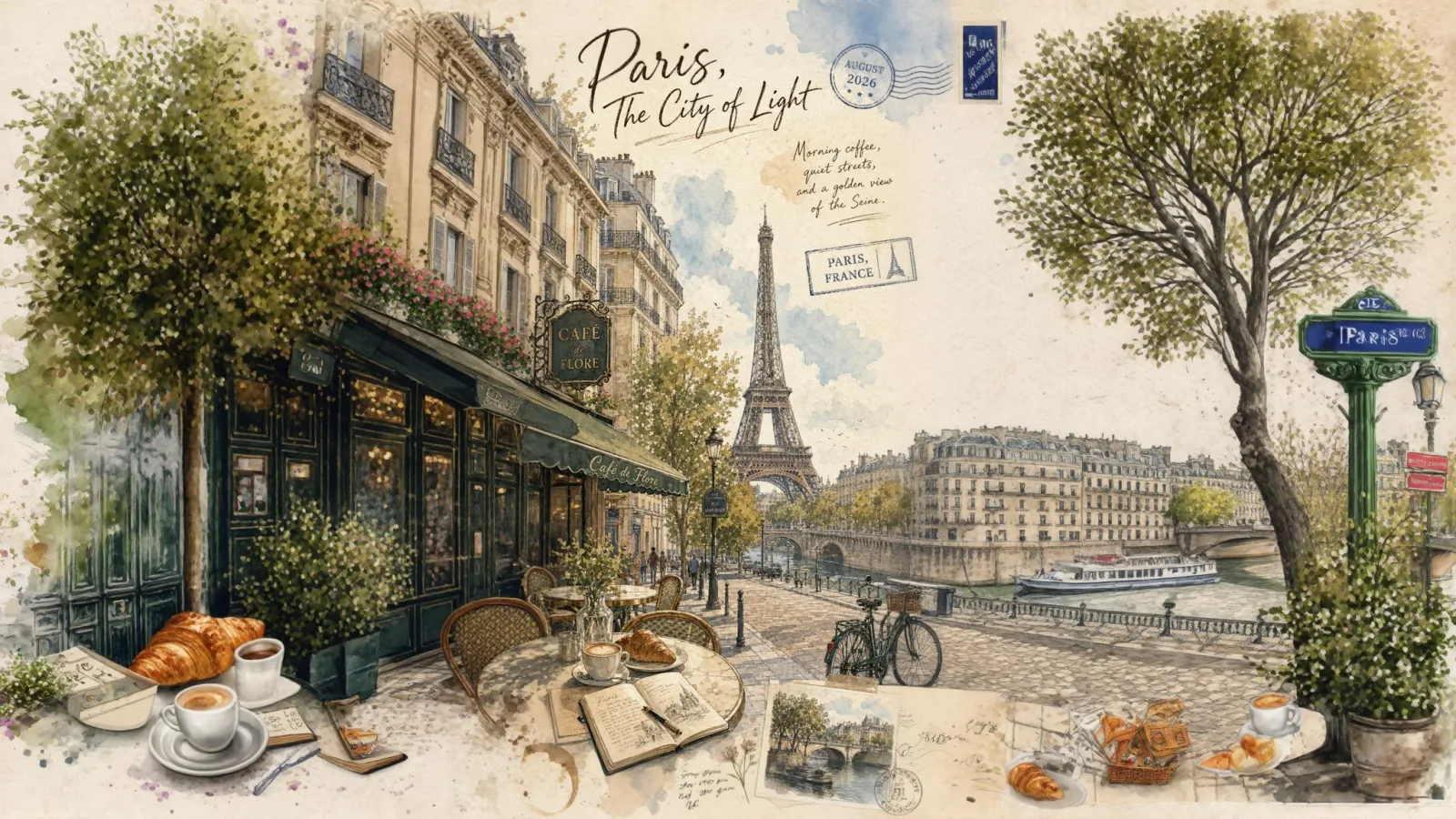
The original composition stays centered while AI reconstructs coherent detail beyond its edges.
AI Outpainting Tool
Change an image to a wider, taller, or square format while AI reconstructs coherent detail around the original composition.
Add believable new scenery around the source image instead of stretching, mirroring, or repeating its edge pixels.
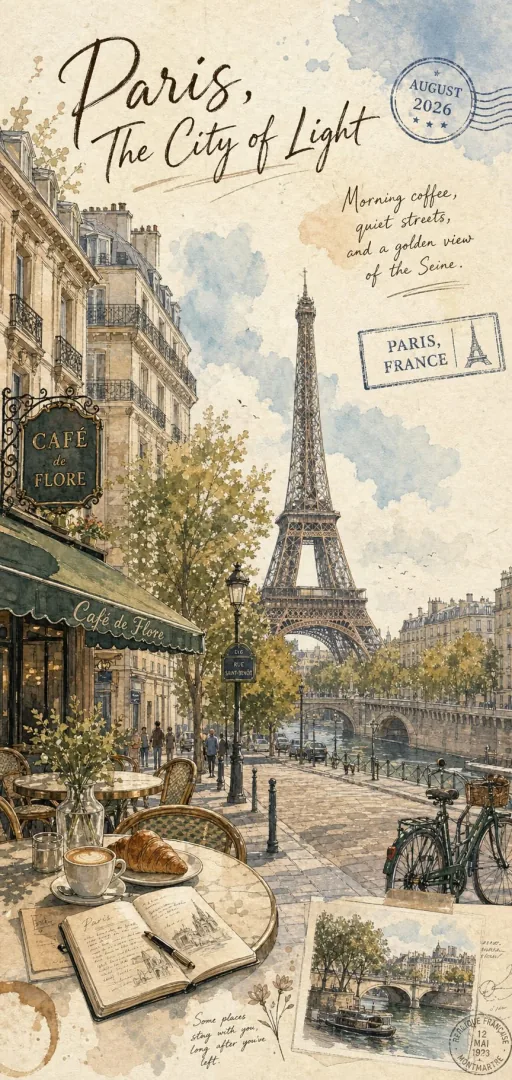
The source remains centered inside the new canvas while AI creates content only in the expanded area.
Extend lighting, perspective, depth, color, and texture so the added area belongs to the same scene.
AI outpainting example
The framed center is the complete original image. Everything outside that frame was generated to continue the scene at a wider aspect ratio.
Original canvasPopular uses
Change an image to a wider, taller, or square format while AI reconstructs coherent detail around the original composition.
Turn portrait, square, and landscape images into channel-ready layouts without tightly cropping the main subject.
Create extra negative space for marketplaces, banners, promotional copy, and responsive storefront imagery.
Extend backgrounds for presentations, thumbnails, posters, hero images, and campaign variations.
How it works
Extend the canvas without stretching the original pixels
Choose a clear JPG, PNG, or WebP image with enough visible context around the subject.
Select the target aspect ratio and output resolution for the expanded canvas.
Let AI fill the new area, review the full composition, and download the finished image.
Answers to common questions about extending images, changing aspect ratios, and preserving the original photo.
AI outpainting expands an image beyond its existing borders. It analyzes the subject and surrounding scene, then generates new pixels that continue the composition into a larger canvas.
No. The original pixels keep their proportions. New content is generated outside the source frame, so the subject is not stretched to fill the target aspect ratio.
You can choose common square, portrait, and landscape formats in the workspace. Select the ratio that matches your website, marketplace, presentation, or social channel.
Cropping removes parts of an image to fit a frame. Outpainting adds new visual content around the image, giving the subject more room while retaining the original composition.
Images with a clear subject, consistent lighting, and visible environmental context usually work best. Complex text, precise logos, and unique repeating geometry may need closer review.
You may use the output according to the rights you hold in the source image and the applicable ImageWise terms. Always confirm that you have permission to edit and publish the original material.