
Improve clarity and sharpness
Refine soft edges and local contrast so photos, products, and scanned images look cleaner without an exaggerated sharpened effect.
Image optimization
Use AI to recover detail, reduce noise, sharpen edges, refine faces, and repair compression artifacts.
Drop your image here
JPG, PNG, WebP, or GIF up to 20 MB. Drop files here or choose them from your device.
AI analyzes the image to recover detail, reduce noise, improve sharpness, repair compression artifacts, and refine faces naturally.
Try each AI feature once per day for free. Sign in to continue and keep results in your account.
Recover clarity, color, and contrast
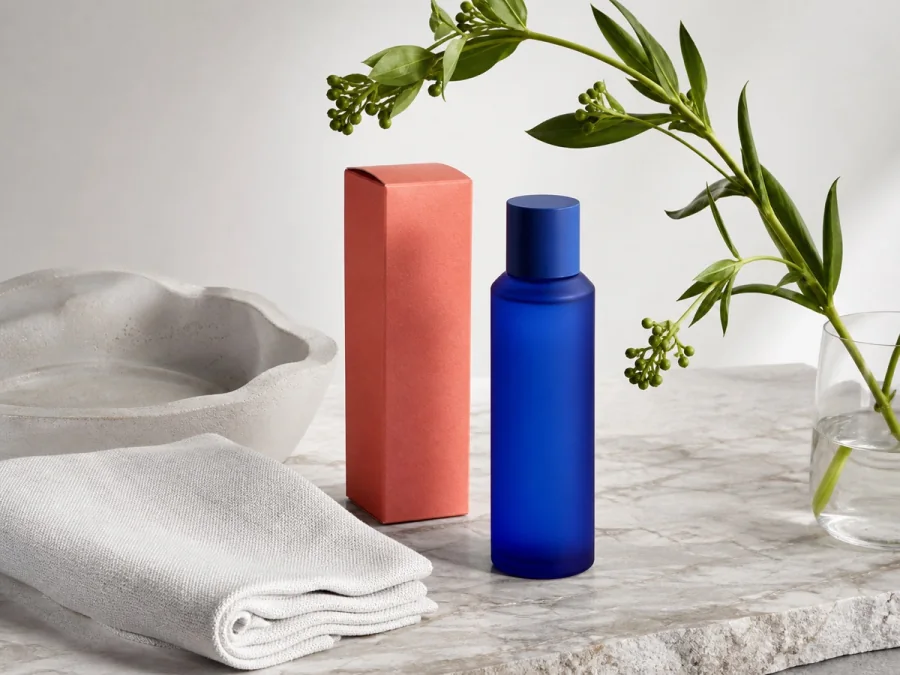 BeforeAI result
Recover clarity, color, and contrast
See how enhancement reduces softness and restores a cleaner, more balanced image without changing the composition.
AI image enhancement
ImageWise analyzes the existing image to improve clarity, edge definition, color balance, contrast, facial detail, noise, and compression artifacts. It is designed for visual cleanup rather than simply making the canvas larger.
Refine soft edges and local contrast so photos, products, and scanned images look cleaner without an exaggerated sharpened effect.
Smooth distracting grain, blockiness, and ringing introduced by low light, repeated saving, messaging apps, or aggressive JPEG compression.
Correct dull color and uneven contrast while refining visible facial features for portraits, profile images, and everyday photography.
Enhancement examples
AI enhancement is useful for dull, noisy, softly focused, or compressed images that need a cleaner finish without changing the intended scene or framing.
 BeforeEnhanced
Refine soft edges and local contrast so photos, products, and scanned images look cleaner without an exaggerated sharpened effect.
BeforeEnhancedSmooth distracting grain, blockiness, and ringing introduced by low light, repeated saving, messaging apps, or aggressive JPEG compression.
 BeforeEnhanced
Correct dull color and uneven contrast while refining visible facial features for portraits, profile images, and everyday photography.
Three-step workflow
Improve a photo in a few steps without adjusting dozens of sliders in a desktop editor.
Choose a JPG, PNG, or WebP photo, product image, scan, illustration, or screenshot that needs visual cleanup.
The model analyzes detail, noise, edges, color, contrast, faces, and compression artifacts in one processing pass.
Check natural textures, faces, and fine details at full size, then download the enhanced image.
Best results
AI works best when the subject is still recognizable. Use a clean original whenever possible and compare the result at full resolution before publishing.
Original camera files and first-generation exports usually retain more useful texture than images repeatedly downloaded from social or messaging apps.
Inspect eyes, hair, skin texture, logos, labels, and fine product contours to confirm that the enhanced result still looks natural and accurate.
Enhancement improves the existing image. If the final output must also be physically larger, use the Image Upscaler after visual cleanup.
Practical answers about sharpness, resolution, blur, noise, portraits, and choosing between enhancement and upscaling.
It can improve perceived clarity, edge definition, local contrast, color balance, facial detail, noise, and compression artifacts. The exact changes depend on what the model detects in the source image.
It can improve mild softness and motion blur, but severe blur removes real information. In those cases the model may generate plausible detail rather than recover an exact original.
Its main purpose is visual quality improvement at the existing composition and dimensions. Use the Image Upscaler when you specifically need 2x, 3x, or 4x pixel dimensions.
Yes. The model can refine visible eyes, hair, skin texture, and facial edges. Very small or heavily blurred faces may be interpreted, so always review identity-sensitive photos carefully.
It can reduce common blockiness, ringing, grain, and low-light noise while preserving important edges. Extremely compressed files may still contain permanent artifacts.
If the source needs cleanup and enlargement, enhance it first so the upscaler receives a cleaner image. If the source already looks good and only needs larger dimensions, go directly to upscaling.
Upload, adjust the settings, and preview the result in one straightforward flow.
Before you begin, ImageWise clearly indicates whether a tool runs locally or requires AI processing through your account.
Handle one-off edits, recurring content tasks, and multi-image projects from the same workspace.
Compare plans for more AI usage, batch processing, saved results, and larger image workloads.