
Repair visible photo damage
Reduce scratches, dust, creases, spots, fading, discoloration, and noise caused by age, storage, scanning, or repeated handling.
AI Photo Restoration
Repair scratches, dust, fading, blur, noise, and damaged detail while keeping the people, composition, and character of the original photograph.
Animated example
AI repairs visible damage and recovers clarity while preserving identity, pose, composition, and authentic photographic detail.
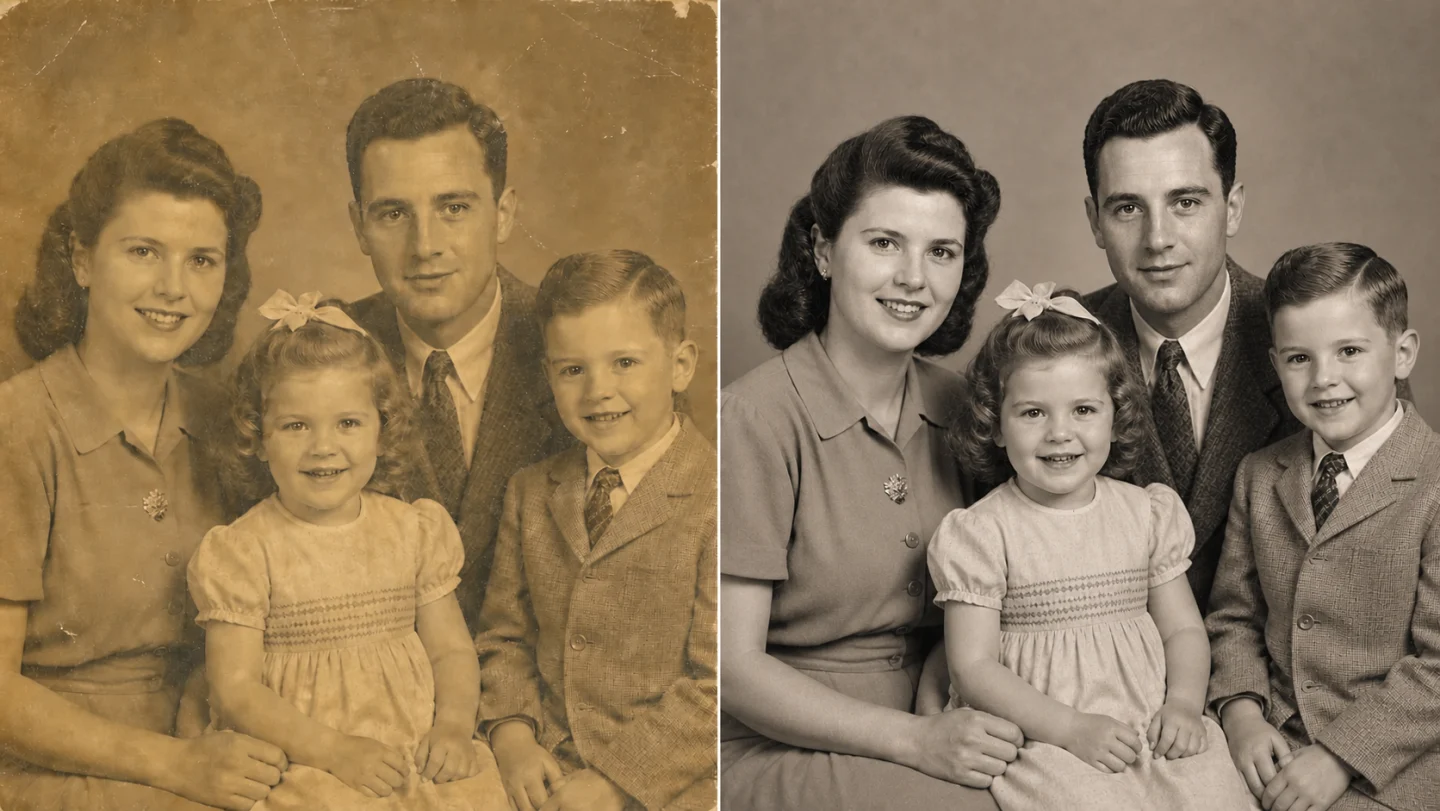 Original canvasRestored
AI PHOTO RESTORATION
AI old photo restoration analyzes the photograph as a whole, reduces visible age-related damage, and reconstructs missing visual detail. The goal is a cleaner, clearer image that still resembles the people, place, pose, and composition in the source photo.
Reduce scratches, dust, creases, spots, fading, discoloration, and noise caused by age, storage, scanning, or repeated handling.
Improve soft facial features, hair, fabric, edges, texture, contrast, and overall clarity without simply stretching the original pixels.
Keep the original black-and-white or sepia character by default, or enable Smart colorization for restrained, plausible color.
BEFORE AND AFTER
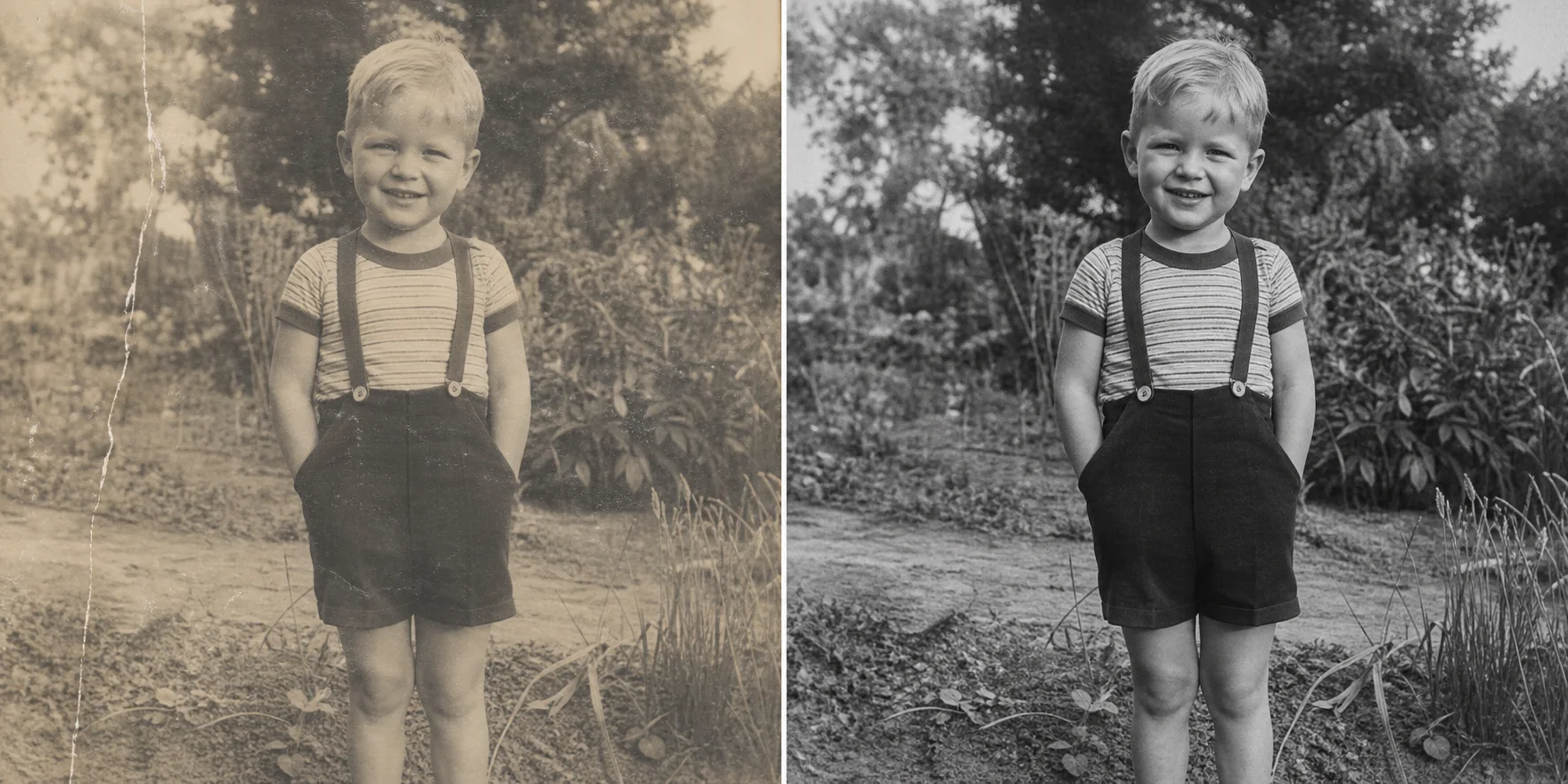
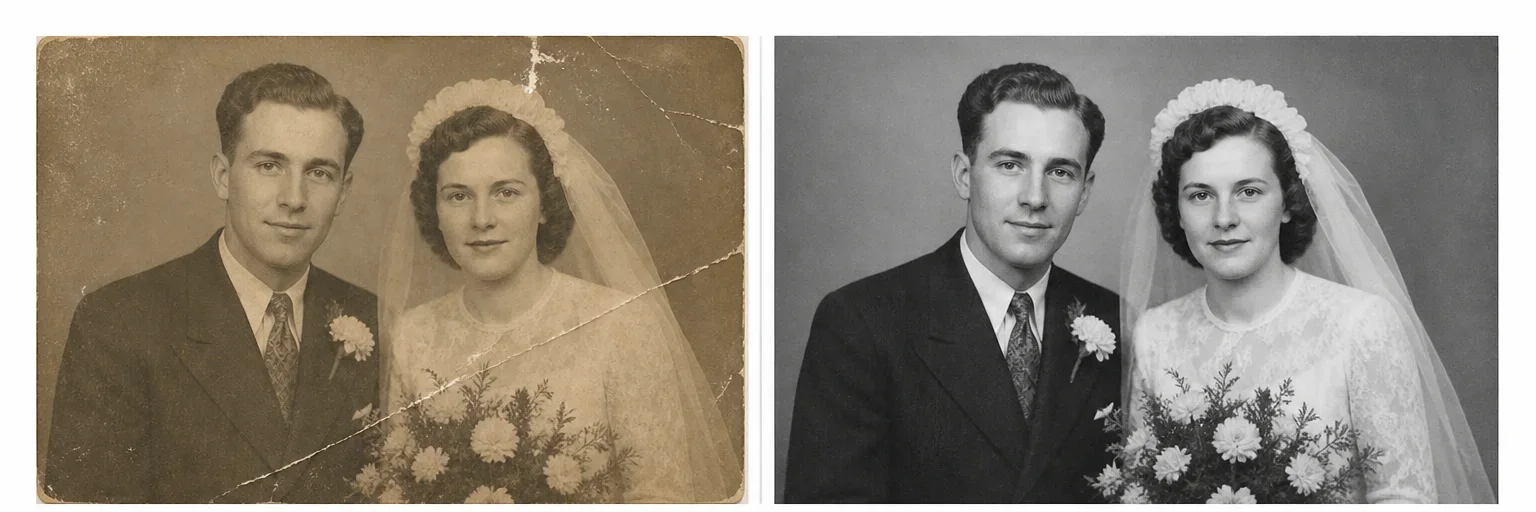
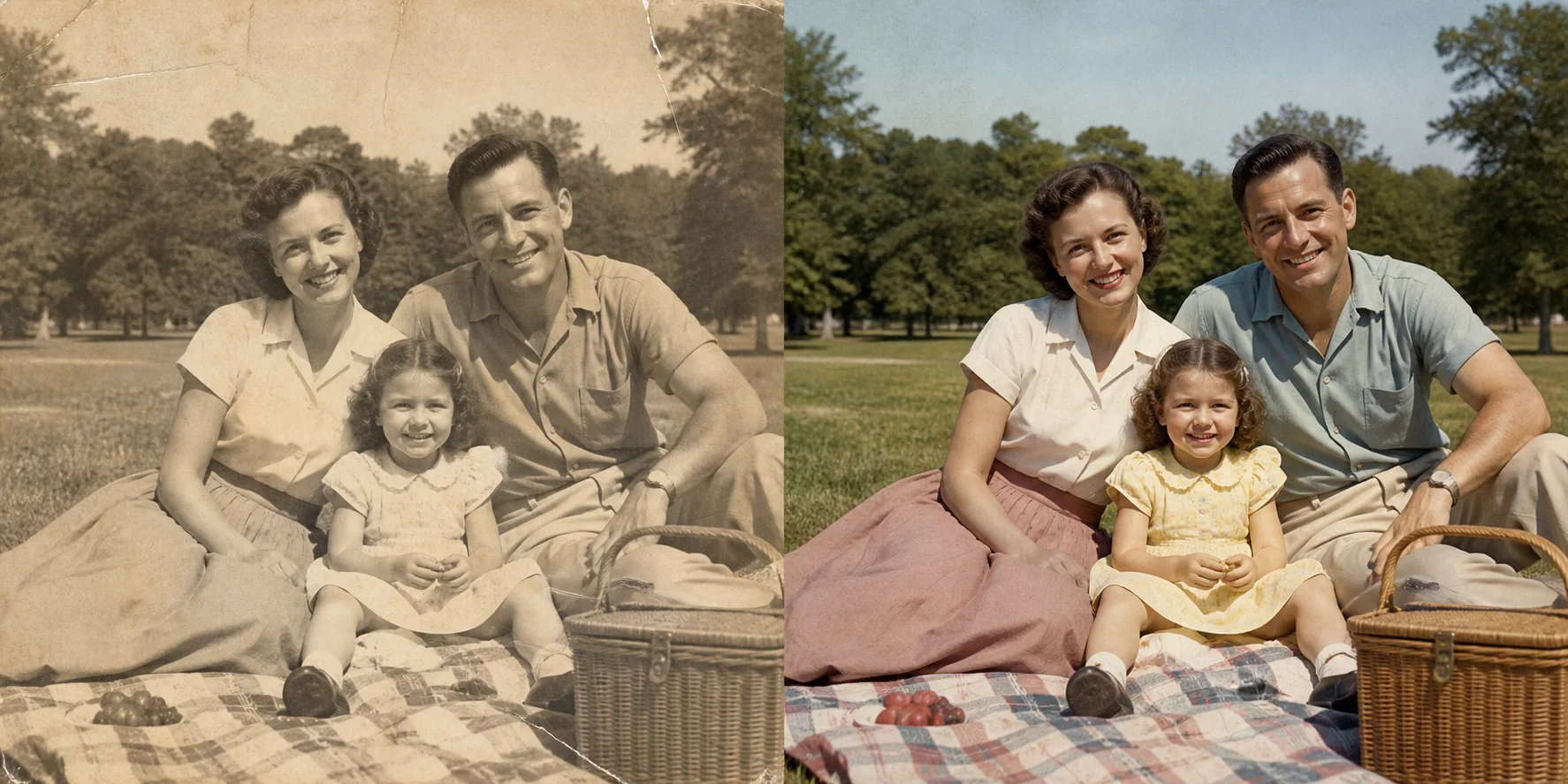
These comparisons show common restoration goals: removing age-related damage, recovering contrast, and clarifying detail while keeping the original scene recognizable.
 BeforeRestored
Reduce scratches, dust, fading, and softness while preserving the child's identity, clothing, pose, and garden setting.
 BeforeRestored
Reduce cracks, scratches, and fading while recovering natural facial and fabric detail.
 BeforeRestored
Restore fading and surface damage, then add restrained, historically plausible color while preserving the family's identity, clothing, pose, and original park setting.
WHAT TO RESTORE
Use online photo restoration for family archives, scanned albums, inherited prints, and historical images that have faded or become damaged over time.
Restore portraits of parents, grandparents, children, weddings, reunions, and other irreplaceable family moments before printing or sharing them.
Clean up scanned prints and negatives as part of a digital family archive while keeping the original file as an untouched reference.
Improve the readability of old school, military, neighborhood, building, and local-history photographs for research, exhibits, and documentation.
HOW IT WORKS
No manual retouching or photo-editing experience is required. Start with the clearest scan or photograph you have.
Choose a JPG, PNG, or WebP scan or photograph. A straight, high-resolution image with little glare gives AI more usable detail.
Leave Smart colorization off to preserve black-and-white or sepia tones, or turn it on when you want a naturally colorized version.
Compare the restored result with the source, check important faces and details, and download the completed image.
BEST RESULTS
A better digital source gives the model more real information to preserve and reduces the need to infer missing detail.
Use the original print when possible, scan in color even for monochrome photos, and avoid aggressive compression or screenshots of screenshots.
Place the print on a flat surface, keep the camera parallel, use even indirect light, and crop out the table or frame after capture.
Treat the AI result as a restored copy. Preserve the untouched scan for archival reference and compare identity, inscriptions, uniforms, and small historical details.
Clear answers to common questions about restoring, repairing, enhancing, and colorizing old photographs with AI.
AI old photo restoration is an image-processing workflow that identifies age-related damage such as fading, scratches, dust, blur, noise, and lost contrast, then creates a cleaner and clearer version of the same photograph.
Upload a JPG, PNG, or WebP image, decide whether to keep the original tone or enable Smart colorization, start the restoration, then review and download the result. A high-resolution, evenly lit scan usually produces the best result.
It can reduce many visible scratches, spots, creases, fading, noise, and moderate blur. Results depend on how much real information remains; severe tears or fully missing facial areas require the model to infer more detail.
The restoration instructions prioritize identity, pose, clothing, composition, and period character. Because the result is AI-generated, small details can still vary. Always compare important faces and features with the original.
No. Smart colorization is optional. Leave it off to retain the source photo's black-and-white or sepia appearance, or turn it on to request restrained, plausible color.
Use the highest-resolution scan or photograph available. Keep the print flat, the camera straight, and the lighting even. Avoid glare, heavy JPEG compression, motion blur, and unnecessary cropping around important faces.
The restoration workspace accepts JPG, PNG, and WebP images. Converting a high-quality scan to one of these formats is preferable to uploading a screenshot of the photo.
Yes. The tool runs in a modern web browser on desktop and mobile devices. For physical prints, use even light and hold the phone parallel to the photograph to avoid glare and perspective distortion.