
Product listings and catalogs
Standardize product photos for online stores, marketplaces, menus, and sales sheets without reshooting every item.
AI Background Remover
Remove the background from product photos, portraits, pets, and graphics online while preserving hair, fur, and fine foreground edges.
Animated example
The animated sweep reveals a transparent cutout with the foreground and fine edges preserved.

 Original canvasTransparent PNG
REAL BACKGROUND REMOVAL RESULTS
AI identifies the main subject, separates it from the scene, and turns the removed area into transparency. Review the edge detail in these representative examples.
 Original photo
 Transparent PNG
Separate a person from a busy setting while retaining hair, clothing, hands, and accessories for profiles, resumes, and social graphics.
 Original photo
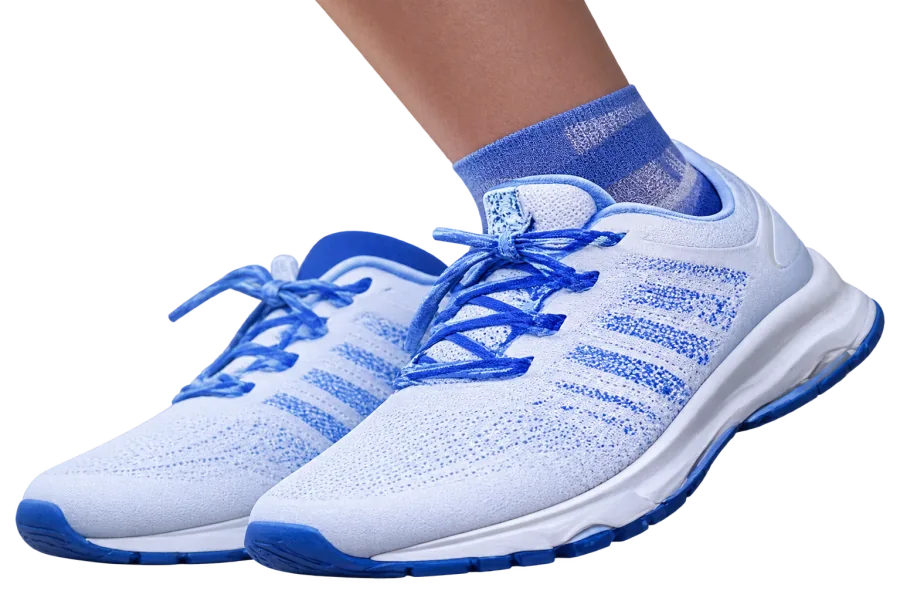 Transparent PNG
Create a reusable product cutout for white-background listings, catalog layouts, comparison graphics, or a new branded backdrop.
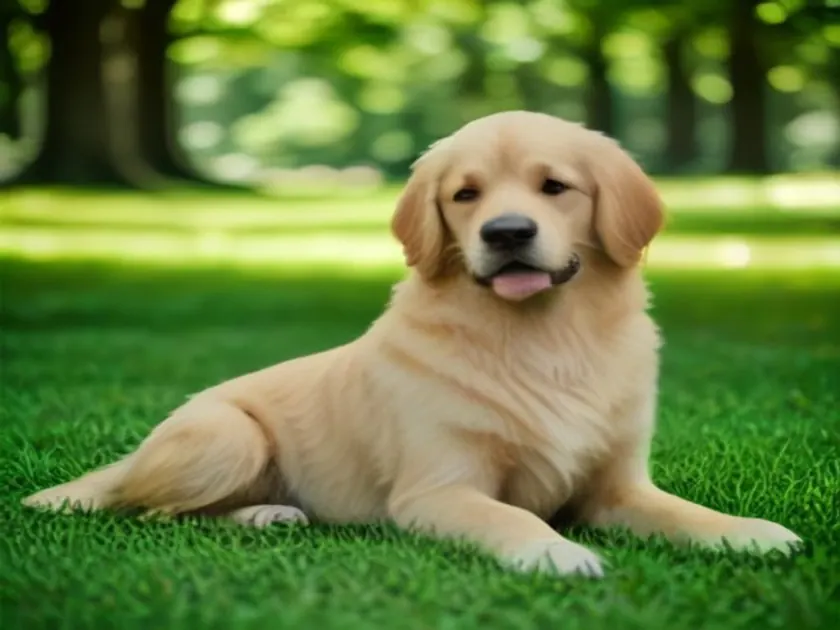 Original photo
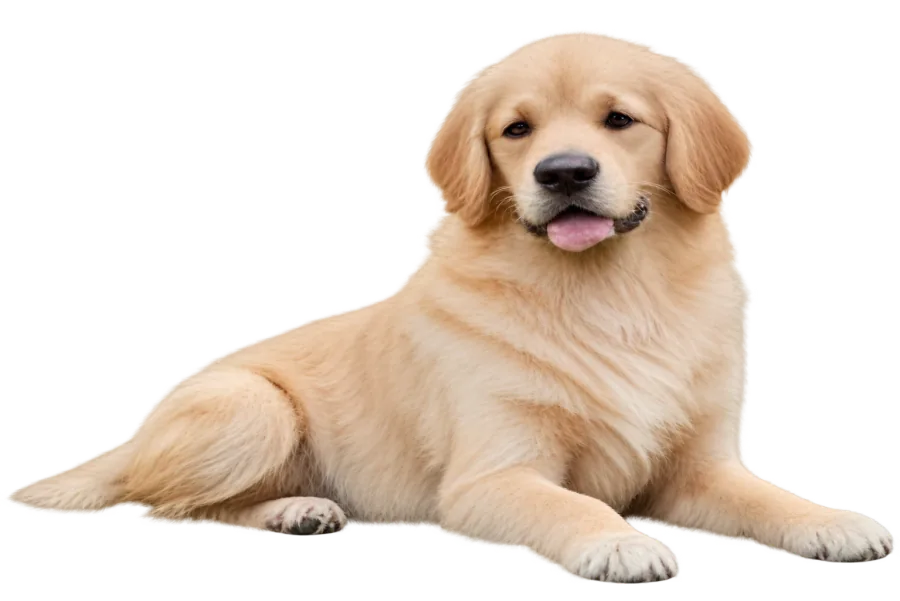 Transparent PNG
Isolate animals from outdoor scenes while keeping soft fur and an expressive silhouette ready for stickers, keepsakes, or design projects.
MADE FOR REAL IMAGE WORKFLOWS
Start with a transparent subject, then place it on the background, canvas, or layout your project requires.
Standardize product photos for online stores, marketplaces, menus, and sales sheets without reshooting every item.
Prepare portraits for team pages, professional profiles, ID layouts, presentations, and channel-specific social designs.
Turn products, people, pets, and graphics into flexible layers for ads, thumbnails, collages, posters, and presentations.
HOW IT WORKS
Create a transparent cutout in three straightforward steps—no manual tracing or layer masks required.
Choose a JPG, PNG, or WebP from your device, or provide a direct image URL.
Start background removal and let AI separate the foreground from the surrounding scene.
Inspect hair, fur, and fine edges, then download the finished image with a transparent background.
Answers about transparent PNG output, supported images, edge quality, credits, and privacy.
AI analyzes the image to distinguish the main foreground subject from the surrounding scene. It removes the background pixels and returns the subject with transparency around it.
You can upload JPG, PNG, or WebP images. The finished cutout is provided with transparency so it can be downloaded and reused as a transparent image.
The model is designed to preserve fine foreground detail and works best when the subject is clear and visually distinct from the background. Wispy hair, glass, motion blur, or similar foreground and background colors may need closer review.
The workspace shows the current credit cost before processing. Eligible visitors can use the displayed free trial for this AI feature, then sign in to continue with account credits.
Background removal focuses on isolating the foreground rather than compressing it. Review the final edge and resolution before publishing; you can use Image Upscaler afterward when a larger output is required.
This AI feature sends the image to the configured processing provider to create the result. Avoid uploading sensitive material and review the ImageWise Privacy Policy for retention, providers, and your rights.