How to Translate Text in an Image Without Losing the Layout
Learn how to translate text in an image online while preserving the layout of screenshots, photos, menus, posters, and product graphics.
 ImageWise Team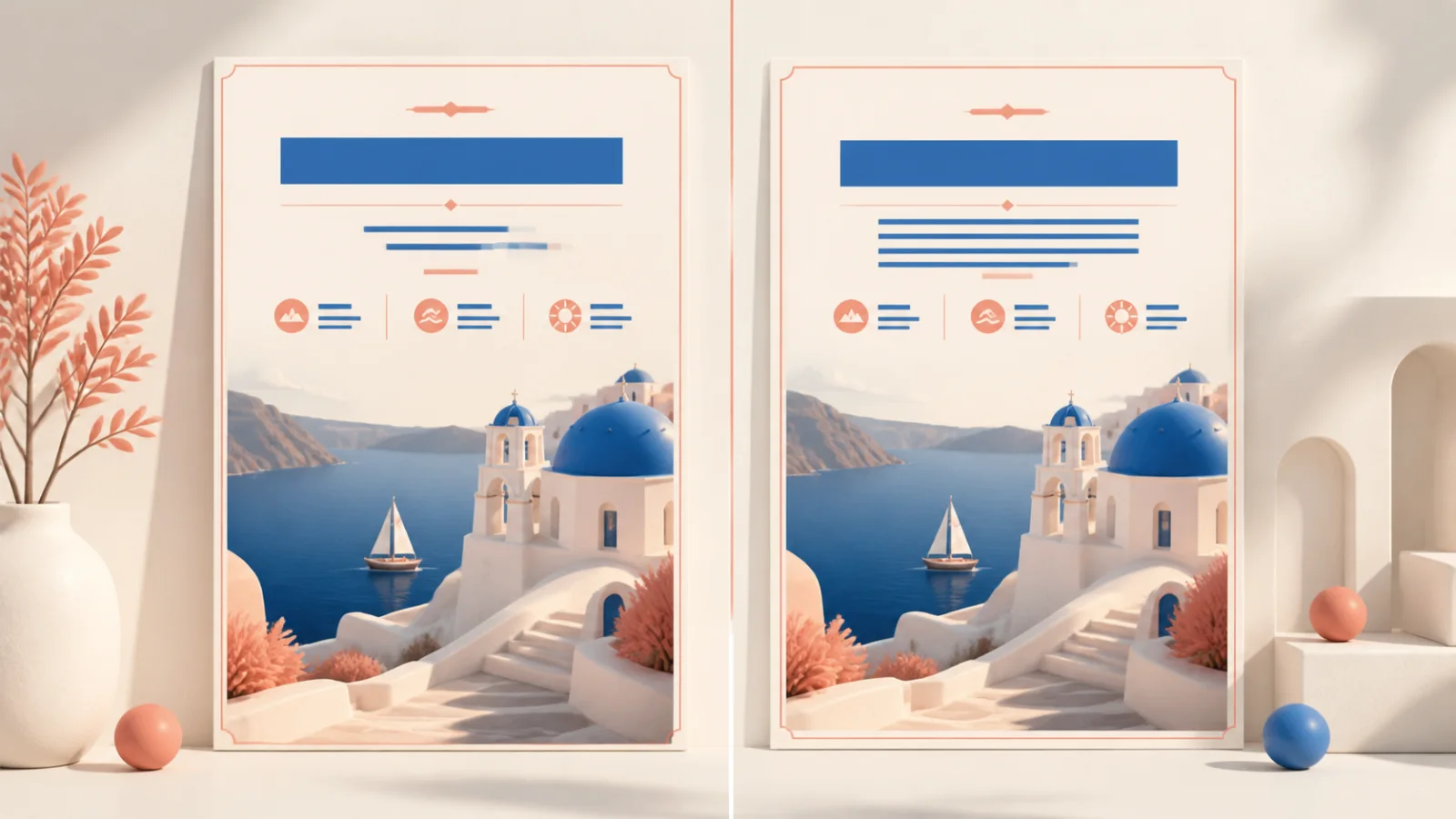
To translate text in an image, an image translator must first recognize the words, understand their context, and place the translation back into the visual. The result also needs to remain readable, fit the available space, and feel consistent with the original design.
Start with the right source image
Use the clearest version you have. Higher resolution helps with small text, low-contrast labels, and decorative type. Avoid screenshots that have already been heavily compressed.
Choose the source and target languages
Automatic language detection works well for most images. Selecting the source language manually can improve results when the image mixes several languages or contains very little text.
Add useful instructions
Tell ImageWise about anything that should remain consistent:
- Keep brand names and product codes unchanged.
- Use natural wording for a product listing.
- Preserve a formal or conversational tone.
- Prefer short translations that fit compact labels.
Review the finished composition
Translated text can be longer or shorter than the original. Check small labels, curved text, stylized typography, and text placed over detailed artwork before publishing.
Match the tool to the job
Use the standard Image Translator for screenshots, signs, menus, and posters. Product Image Translator is better suited to marketplace graphics, while Batch Image Translator helps when the same campaign includes several images.
If your source is a camera photo, read the photo translator guide. For app or desktop captures, see how to translate a screenshot.